Overview
Cellvert extracts tables from PDF files and turns them into Excel (XLSX) or CSV files. It works with two kinds of PDFs:
- Digital PDFs, created by software (exports from banking portals, accounting tools, invoicing software). Their text is read directly, which gives the most accurate results.
- Scanned PDFs, made from paper documents or photos. Cellvert reads them with optical character recognition (OCR).
Cellvert does not require an account. You buy a page pack once, receive an access key by email, and use that key to log in.
Quick start
- Choose a pack on the pricing page and complete your purchase.
- Open the email we send you. It contains your personal access key, which starts with
cvt_. - Go to the login page and paste your access key.
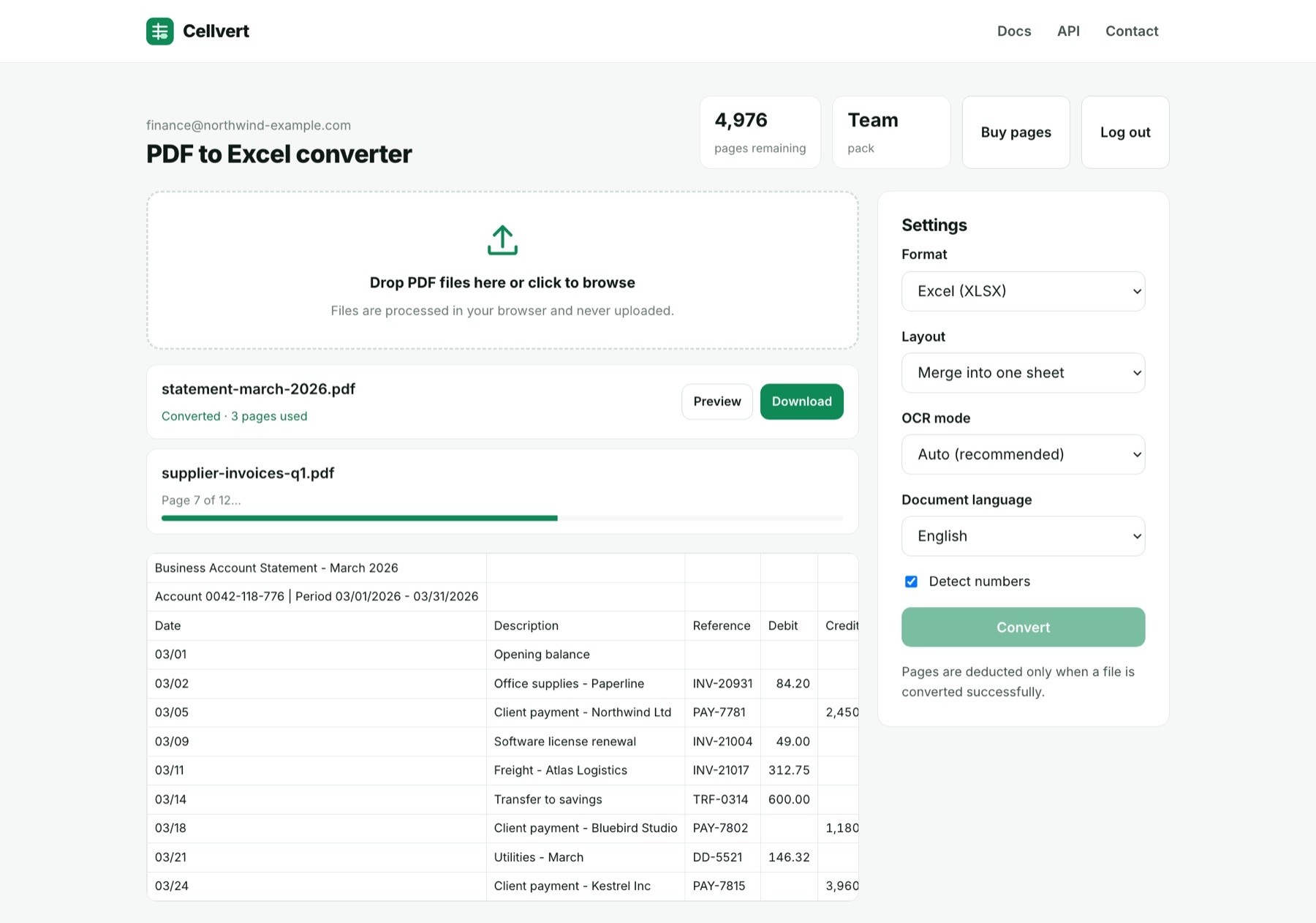
- Drop one or more PDF files into the converter.
- Check the preview, then download your XLSX or CSV file.
Your access key
Your access key works like a password: anyone who has it can use your pages. Keep it private and do not publish it in public code repositories.
- Lost your key? Use Resend my access key on the login page. For security, we issue a new key and the previous one stops working. Your page balance is kept.
- Key exposed? Use the same option to replace it immediately.
- Staying logged in: after you log in, your browser stays signed in for 30 days. Use Log out on shared computers.
Uploading files
Drag and drop PDF files onto the converter, or click it to choose files. Cellvert accepts files with the .pdf extension.
Privacy: in the web app, your files are processed directly in your browser. They are not uploaded to our servers. Only the file name and the number of pages converted are sent to us, to update your balance and your conversion history. You can clear this history at any time from your dashboard.
Password-protected PDFs must be unlocked before conversion. Open them in your PDF reader and save a copy without a password.
OCR and languages
The OCR mode setting controls when optical character recognition is used:
| Mode | Behavior |
|---|---|
| Auto (recommended) | Uses the PDF's text layer when present and switches to OCR only for pages without text. |
| Always | Runs OCR on every page. Useful when a PDF has a damaged or incorrect text layer. |
| Never | Uses only the text layer. Pages without text produce empty sheets. |
Choose the document language so OCR recognizes accents and special characters correctly. Supported languages: English, French, German, Spanish, Italian, Portuguese, Dutch, Polish, Swedish, Danish, Turkish and Simplified Chinese. Need another language? Let us know.
The first OCR conversion in a session downloads the language model (a few megabytes), so it can take a little longer.
Output options
| Option | Description |
|---|---|
| Format | XLSX creates an Excel workbook. CSV creates a single comma-separated file containing all pages, one after another. |
| Layout | One sheet per page keeps pages separate. Merge into one sheet stacks all pages one after another, which is ideal for multi-page statements (Basic pack and above, XLSX only). |
| Detect numbers | Converts values such as 1,250.00 or -84.20 into real numbers so you can use formulas. Turn it off to keep every value as text, for example for account or reference numbers with leading zeros. |
Batch conversion
Select several files at once to convert them in one go. The number of files per batch depends on your pack: 5 (Starter), 20 (Basic) or 100 (Pro, Team, Business). Each file produces its own download.
Pages and balance
- One page = one PDF page successfully converted.
- Pages are deducted only once a file is converted. Failed conversions are free.
- Your remaining balance is shown at the top of the converter.
- Each pack is valid for a fixed access period from the date of purchase: 1 month (Starter), 3 months (Basic), 6 months (Pro) or 12 months (Team and Business).
- At the end of the access period, unused pages expire and conversions stop until you buy a new pack.
- Your remaining pages and the end date of your access are shown in your dashboard.
Your dashboard
After logging in, your dashboard at /app gives you:
- Overview: remaining pages, the end date of your access, pages converted, a 30-day usage chart and your recent conversions.
- Convert: the PDF to Excel converter.
- History: your last 200 conversions, searchable and exportable as CSV.
- API: your key, rate limit and a ready-to-use example (Team, Business and Enterprise).
- Billing: your purchases and the packs to top up your balance.
- Settings: generate a new access key, clear your history or log out.
Topping up
Buy any pack using the same email address as your first purchase. If your access is still active, the new pages are added to your remaining pages and your access period is extended. If it has already ended, the new pack starts a new access period. You receive a confirmation email and your key does not change. If your new pack includes API access, it is enabled on your key automatically.
Using Cellvert in a team
Team and Business packs are designed to be shared. Share the access key with your colleagues through your password manager. Everyone draws from the same page balance. If you need separate keys per person or department, usage reports or a Data Processing Agreement, see our Enterprise plan.
Limits
| Limit | Value |
|---|---|
| Maximum file size | 50 MB per file |
| Maximum pages per file | 500 pages |
| Files per batch | 5 / 20 / 100 depending on your pack |
| Supported input | PDF (digital or scanned) |
| Supported output | XLSX, CSV |
Tips for best results
- Use the original digital PDF whenever possible rather than a scan or a printout.
- For scans, use 300 DPI, straight pages and good contrast.
- Select the correct document language for OCR.
- Use Merge into one sheet for statements that span several pages.
- Always review the preview before using the data. Automatic extraction is very reliable on clean documents, but complex layouts (nested tables, handwritten notes, rotated text) can need manual adjustments.
Troubleshooting
I did not receive my access key
Check your spam or promotions folder, then use Resend my access key on the login page. If it still has not arrived within one hour, email support@cellvert.com with the email address used for your purchase.
Columns are shifted or merged
This can happen with tables that have no visible spacing between columns. Try OCR mode: Always, or contact support with a sample page and we will look into it.
Numbers appear as text
Make sure Detect numbers is on. Values with unusual formats (for example 1.250,00) are kept as text to avoid wrong conversions. Use Excel's Text to Columns or regional settings to convert them.
The page says "Not enough pages"
Your balance is lower than the number of pages in the file. Buy another pack with the same email address to top up.
Still stuck? Contact support. We reply within two business days, and Business customers within one business day.